Appearance: Classic and Fresh
Choose how Bookmark Ace looks, the original Classic look or the clean Fresh look, with light and dark modes.
Bookmark Ace has two looks, called skins. They work the same way and show the same things; only the appearance changes. Your choice is yours alone and does not change what anyone else sees.
Choosing a look
- Click Settings.
- Under Appearance, click the picture of the look you want.
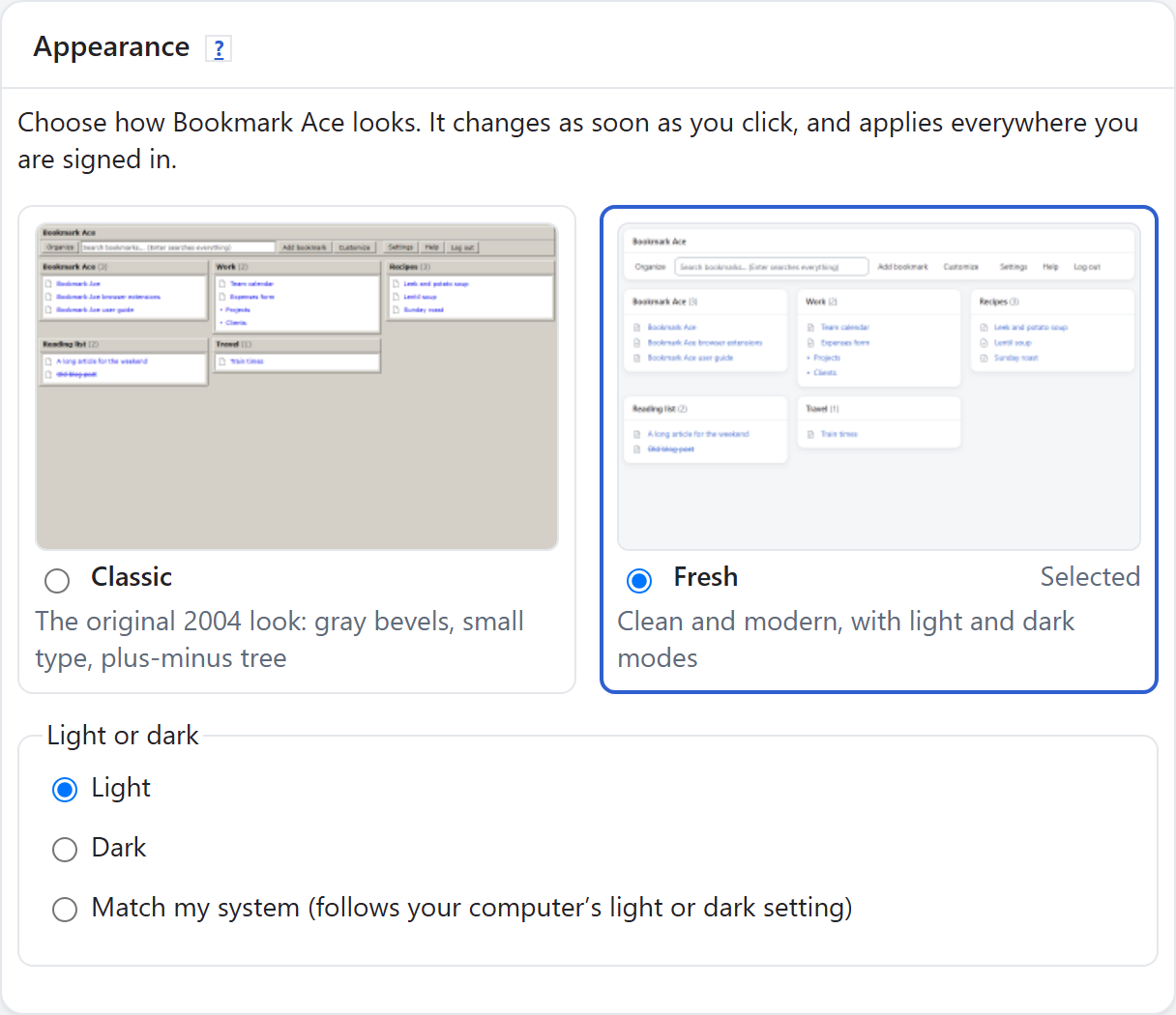
The page changes straight away and the choice is saved; there is no Save button to click.
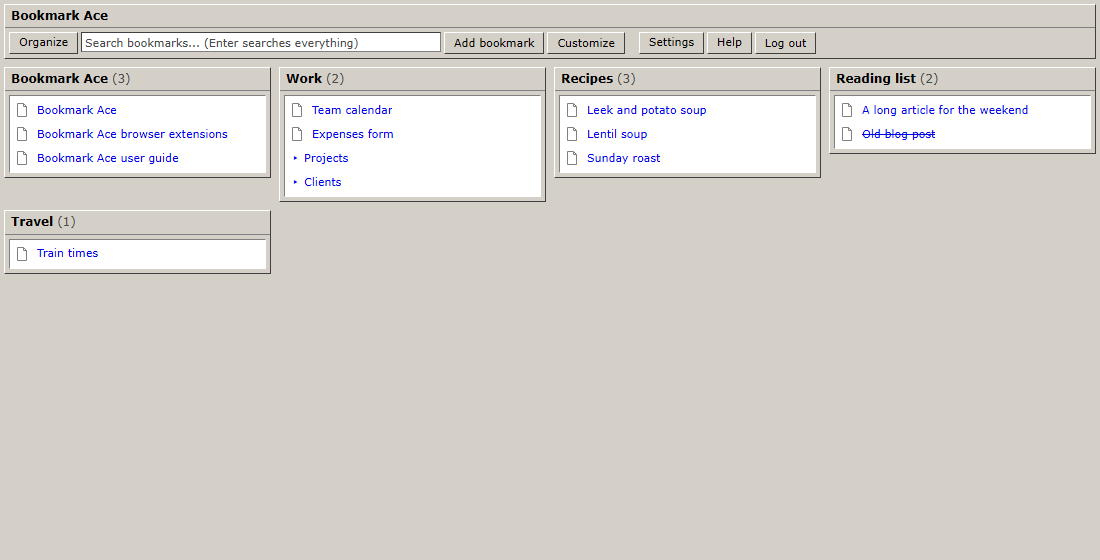
Classic
The original look from 2004: gray Windows-style bevels, small Verdana type and a folder tree with plus and minus boxes and dotted lines. Every account starts with Classic unless your administrator chose otherwise.
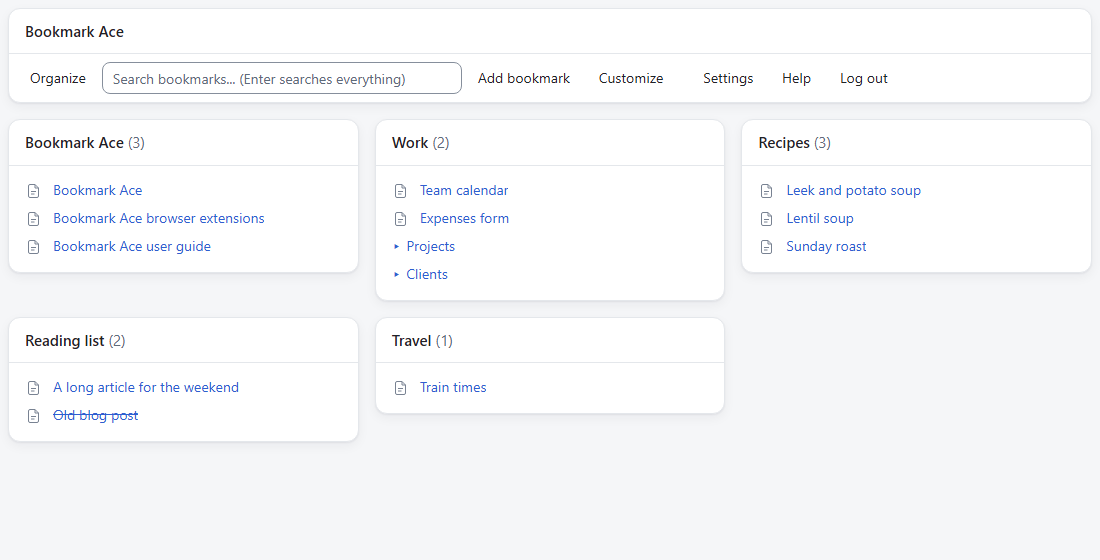
Fresh
A clean, modern look with rounded boxes, more space and a folder tree with arrows.
Light or dark
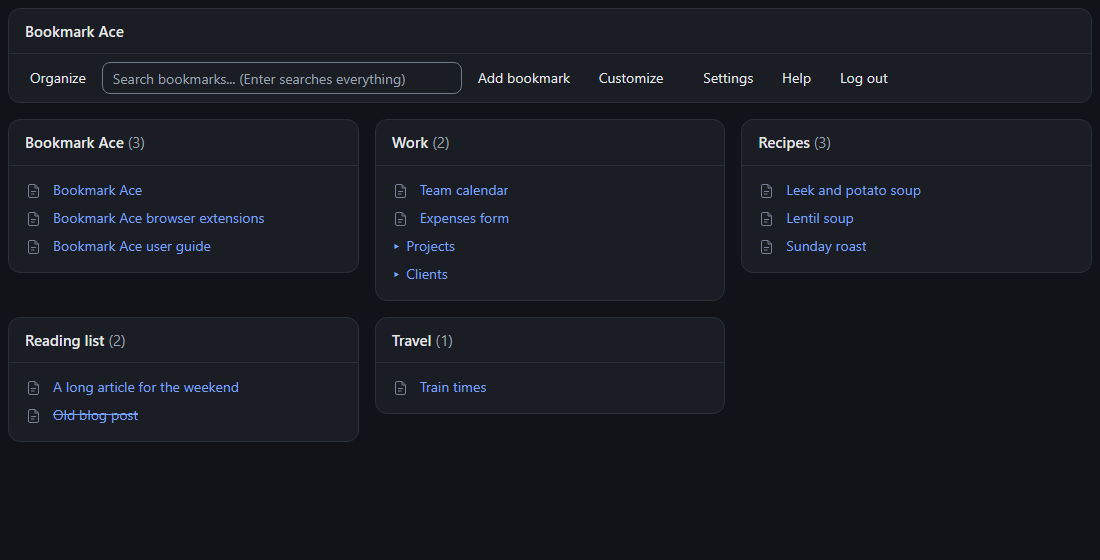
Fresh has three modes, shown under Light or dark when Fresh is chosen:
- Light: always light.
- Dark: always dark, easier on the eyes at night.
- Match my system: follows your computer's light or dark setting, and changes when it does.
Classic has one mode only.
Where your look applies
- The start page, the Organizer, Settings, Import and Export, the bookmarklet pages and
/sidebar. - The browser extension's side panel and the New Tab extension. They remember your look, so they open in it straight away; until they have connected to your account for the first time, and after you disconnect them, they use Classic.
- Your published folders: people who open one see it in your look, not theirs.
Pages for people who are not signed in, such as the front page, log in, request an account and the help pages, are always in Classic. Emails are plain text and look the same whatever you choose.
For administrators
On the Accounts page, Default look for new accounts sets the look that new accounts start with. Existing accounts keep theirs.
Related
← Settings, two-factor and connected browsers · Your account, privacy and deleting it →